
216digital.
Web Accessibility

ADA Risk Mitigation
Prevent and Respond to ADA Lawsuits


WCAG & Section 508
Conform with Local and International Requirements


a11y.Radar
Ongoing Monitoring and Maintenance


Consultation & Training

Is Your Website Vulnerable to Frivolous Lawsuits?
Get a Free Web Accessibility Audit to Learn Where You Stand
Find Out Today!

Web Design & Development

Marketing

PPC Management
Google & Social Media Ads


Professional SEO
Increase Organic Search Strength

Interested in Marketing?
Speak to an Expert about marketing opportunities for your brand to cultivate support and growth online.
Contact Us

About

Blog

Contact Us
  • How to Use VoiceOver to Evaluate Web Accessibility

    Most page reviews start the same way. You scan the layout, tab through a few controls, and make sure nothing obvious is broken. That catches a lot. It just doesn’t tell you what the page sounds like when a screen reader is in charge. Turn on VoiceOver, and the same interface can expose gaps you would never notice visually. A button has no name. The heading structure is thinner than it looks. A menu opens, but nothing announces that anything changed.

    On macOS, Apple’s built-in screen reader gives you a direct way to hear what your site is exposing to assistive technology. We’ll cover a practical setup, the few commands that matter most, and a repeatable testing flow you can use on any page.

    Why VoiceOver Testing Catches Issues Automated Tools Miss

    VoiceOver is a screen reader that ships with Mac devices. When it is turned on, it announces what is on the screen, the role of each element, and its state. It also replaces mouse-first navigation with keyboard navigation so people can move through pages without relying on sight.

    Testing with this tool shows how your site appears to the macOS accessibility layer in Safari. You hear whether headings form a usable outline. You find out whether regions are exposed as landmarks. You also learn whether labels give enough context when they are spoken on their own, which is a big deal for links, buttons, and form fields.

    Small issues stand out more when they are spoken about. A “Learn more” link might seem harmless when it sits next to a product title. But in a list of links, it turns into five identical options with no meaning. An icon-only button might look clear on screen, but it can be announced as “button” with no name. A form field might look labeled, but if that label is not programmatically connected, the field can be read as “edit text” and nothing else.

    VoiceOver is not the only screen reader that matters. NVDA and JAWS on Windows and mobile tools on phones and tablets each have their own patterns. This approach treats macOS testing as one important view into accessibility, not a substitute for broader coverage.

    Web Content Accessibility Guidelines (WCAG) requirements still apply the same way. On desktop, the impact of focus order, labeling, and structure becomes more obvious when you stop scanning visually and start moving through a page one item at a time.

    Set Up VoiceOver in Safari for Reliable Accessibility Testing

    A stable setup makes your testing more dependable over time. You do not need anything complex. A Mac, Safari, and a space where you can hear speech clearly are enough. Headphones help if your office or home is noisy.

    Before you run your first pass, set up the few things that will affect your results:

    • Turn VoiceOver on with Command + F5
      • On some laptops, you may need fn + Command + F5
    • Choose your VO modifier key.
      • Control + Option together, or Caps Lock
    • In Safari preferences, go to the Advanced tab and enable “Press Tab to highlight each item on a webpage.”

    That Safari setting is easy to miss, but it matters. Without it, you can tab and still skip controls you need to test.

    Next, spend a minute in the screen reader settings. Adjust the speech rate to something you can follow without strain. If it is too fast, you will miss details during longer sessions. If it is too slow, you will start rushing and skipping steps. Set the voice and language so they match the primary language of the site.

    Different macOS versions and device setups can change where settings live or how certain items are announced. You do not need the “perfect” configuration. What helps most is using one setup consistently, so results are comparable from sprint to sprint.

    Turn VoiceOver On and Off Fast During Development

    You can enable the screen reader through System Settings under Accessibility, but for regular work, it is worth using the keyboard toggle. Most teams rely on Command + F5 so they can switch quickly.

    That quick toggle matters in real development cycles. You might review a component visually, turn VoiceOver on, test it, turn it off, adjust code, and repeat. If enabling and disabling feel slow, the step stops happening.

    There is a learning curve. When the screen reader is active, you will use the VO key with other keys for many commands. You also want to know how to pause speech quickly. Pressing Control to stop reading is one of those small skills that make testing feel manageable instead of chaotic.

    If you ever want a safe practice mode, turn on Keyboard Help with VO + K. VoiceOver will tell you what keys do without typing or triggering actions. Press VO + K again to exit.

    VoiceOver Commands for Web Testing You’ll Use Most

    You do not need every Mac keyboard shortcut to run useful tests. A small set covers most web content and keeps the process repeatable across a team.

    For reading:

    • Read from the top: VO + A
    • Stop reading: Control
    • Move to next item: VO + right arrow
    • Move to previous item: VO + left arrow

    For interactive elements:

    • Move focus forward: Tab
    • Move focus backward: Shift + Tab
    • Activate an item: Return or VO + Space

    Start with simple, linear navigation. Read from the top and move through items one by one. Ask yourself whether the reading order matches what you see on screen. Listen for controls that do not make sense when heard out of context, like “button” with no name or multiple links with the same vague label.

    This pace will feel slower than visual scanning. That is part of the value. The slowness makes gaps in structure, naming, and focus behavior hard to ignore.

    Use the VoiceOver Rotor to Check Headings, Links, and Landmarks

    Once you can move through a page linearly, the Rotor helps you evaluate structure much faster.

    Open the Rotor with VO + U. Use the left and right arrow keys to switch between categories and the up and down arrow keys to move through the items in that category. Common Rotor lists include headings, links, landmarks, form controls, tables, and images.

    This is where structural problems become obvious. If the page outline is weak, the Rotor will tell you fast.

    Start with headings. Move through the hierarchy and listen for a clear outline. Missing levels, unclear section names, or long stretches with no headings usually mean the structure is not supporting nonvisual navigation.

    Next, move to landmarks. This reveals whether regions like header, navigation, main, and footer are present and used in a way that matches the layout. Too few landmarks can make the page feel flat. Too many can create noise.

    Then scan links and controls. Duplicate or vague link text stands out when you hear it as a list. Controls with incomplete labeling stand out too. An icon button that looks fine can become “button” repeated several times.

    You can also filter Rotor lists by typing. If you are in the headings Rotor and type “nav,” you can jump to headings that contain those characters. Small features like this make VoiceOver testing feel less like wandering and more like a targeted review.

    A Repeatable VoiceOver Workflow for Web Accessibility QA

    You do not need to run a full audit on every page. A light, repeatable workflow is easier to sustain and still catches a large share of issues.

    When you review a new page or a major change:

    1. Turn on the screen reader and let it read the beginning of the page.
    2. Move through the page in order and note anything confusing or missing.
    3. Use the Rotor to review headings, landmarks, links, and form controls.
    4. Complete one core task using only the keyboard.

    Start by listening to how the page begins. Do you hear a clear main heading early? Does navigation appear when it should? Is anything being read that is not visible or not meant to be part of the flow?

    Then move through the content one item at a time. Note skipped content, unexpected jumps, or labels that do not match what you see.

    Next, do your structural passes with the Rotor. Headings give you a quick sense of hierarchy. Landmarks show whether regions are exposed and used correctly. Links and form controls expose labeling patterns and repetition.

    Finally, test a key journey. Pick a task that matters and complete it with no mouse. That might be searching, opening navigation, filling out a form, or moving through a checkout step. If focus jumps, if a dialog opens without being announced, or if you cannot reach a control, it is not a minor problem. It is a broken path for many users.

    Along the way, watch for patterns. Maybe icon buttons from one component set often lack names. Maybe form errors rarely announce. Patterns are the difference between fixing one page and improving the whole system.

    High-Impact VoiceOver Checks for Forms, Menus, and Modals

    Some parts of a site deserve more focused time because they carry more weight for users and for the business.

    Forms and inputs

    Fields should have clear labels, including required fields and fields with special formats. Error messages need to be announced at the right time, and focus should move to a helpful place when validation fails. If the error appears visually but VoiceOver does not announce it, users may never know what went wrong.

    Navigation menus and drawers

    Menus should announce when they open or close. Focus should shift into them when they appear and return to a sensible point when dismissed. A menu that opens visually but stays silent is a common failure.

    Modals and other overlays

    Modals should trap focus while active and hand focus back cleanly when they close. Users should not be able to tab into page content behind the modal. The modal should also have a clear label so it is announced as a meaningful dialog, not just “group.”

    Status updates and confirmation messages

    Loading indicators, success messages, and alerts should be announced without forcing users to hunt for them. If an action completes and nothing is announced, users are left guessing.

    Tables and structured data

    If you use data tables, confirm that headers are associated properly so VoiceOver can announce row and column context as you move. Tables with merged headers or empty corner cells can cause confusing output, so they are worth extra attention.

    These areas tend to reveal focus and naming issues quickly, especially when the UI is built from custom components.

    VoiceOver Bug Notes That Lead to Faster Fixes

    Bringing screen reader testing into your workflow is one of those small shifts that pays off quickly. It helps you catch problems earlier, tighten how your components behave, and ship experiences that hold up under real use.

    To keep it sustainable, capture findings in a way that leads to fixes instead of debate:

    • Record the page and the component or flow.
    • List the steps you took
    • Note what you expected to hear.
    • Note what you actually heard.
    • Explain the impact of completing a task.
    • Suggest a direction, such as a missing label, an incorrect role, or a focus not managed.

    Short, consistent notes are usually enough. Over time, your team will build a shared understanding of what “sounds right” and what needs cleanup.

    Make VoiceOver Checks Part of Your Release Routine

    VoiceOver testing can feel slow at first, and that is normal. You are training your ear to notice things your eyes will always gloss over. Keep the scope small, stay consistent, and let the habit build. A quick pass on one key flow each release is enough to change how teams design, label, and manage focus over time. And when you hit a pattern that keeps coming back, that is usually a sign the fix belongs in your shared components, not in one-off patches.

    If you want help making this a repeatable part of how you ship, 216digital can support you. We work with teams to weave WCAG 2.1 into their development roadmap in a way that fits their product, pace, and constraints. Schedule a complimentary ADA Strategy Briefing, and we’ll talk through what you’re building, where VoiceOver testing should live, and the next changes that will have the most impact.
    Kayla Laganiere

    February 11, 2026
    How-to Guides
    Accessibility, assistive technology, How-to, screen readers, VoiceOver, Web Accessibility, Website Accessibility
  • How Braille Devices Help Users Navigate the Web

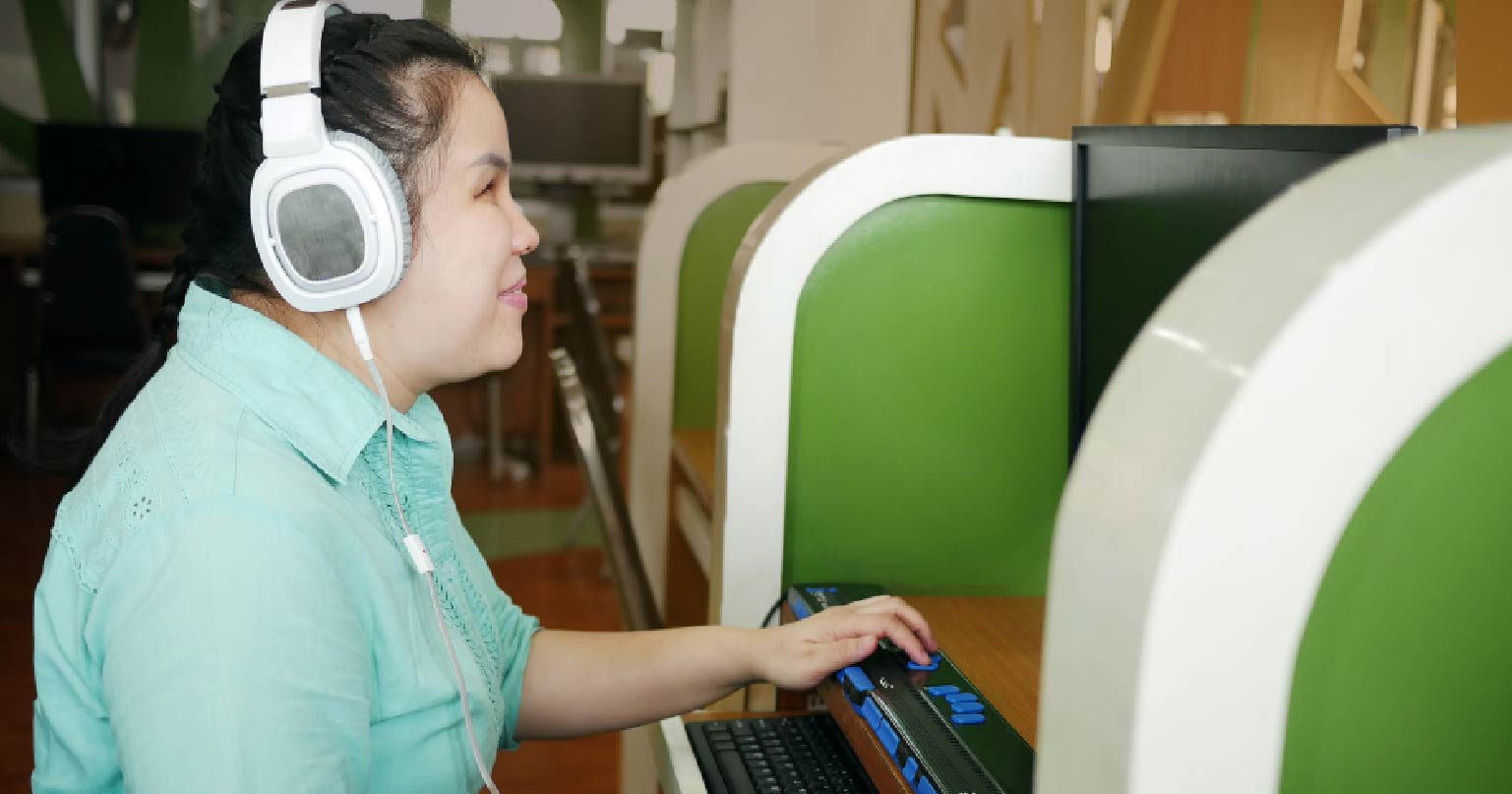
    For many people, the web is something they see and hear. For people who are blind or have low vision, the web can also be something they touch. A Braille device converts on-screen text into Braille characters you can feel, one line at a time, as you move through a page.

    A lot of accessibility discussions start and end with screen readers. They matter, and audio works well for many tasks. But Braille support brings a different kind of clarity, especially when details count. It helps people stay oriented, catch exact wording, and read privately in shared spaces. Once you understand how Braille output follows structure, the question becomes straightforward. Does your site still make sense when it’s being read through touch?

    What Braille Displays Are and How They Work

    A refreshable Braille display is a hardware device with rows of small pins that move up and down to form Braille cells. Each cell represents a letter, number, or symbol. As the user moves through content, the pins refresh to match the text at the current focus point.

    Most displays connect to a computer, phone, or tablet through USB or Bluetooth. Screen reader software gathers the page content and its structure, then sends that information to the display so it can be read line by line. Many devices also include navigation keys that let users move by headings, links, and form fields, plus Braille input keys for typing and shortcuts. Over time, this becomes a fluent way to browse, search, and complete tasks, just through touch. For many users, a Braille device becomes the most reliable way to review details and stay oriented.

    Why Braille Still Matters Besides Audio Tools

    If someone can listen to content, why would they still use Braille to read it by touch?

    A big part of it is literacy and precision. Braille makes language feel exact. Spelling, punctuation, and small details are right there under your fingers, which is hard to match with audio alone. That difference matters when someone is learning, writing, reviewing a policy, or checking a number they cannot afford to get wrong.

    It also changes the pace of reading. Audio is efficient, but it moves on its own timeline. Braille lets the user slow down on a dense paragraph, skim a section title, or jump back to confirm one line without losing their place. That kind of control becomes even more important on pages with complex layouts, technical terms, or multi-step flows.

    And then there is privacy. Reading with a Braille display is often the simplest way to keep personal information personal, whether that is a medical portal, banking details, or an email in a shared space. When web content is structured clearly, a Braille display can support that kind of independent, focused access without forcing users into workarounds.

    How Web Content Becomes Tactile

    Braille output depends on something most users never see. The structure of the code. Assistive technology is not reading pixels on the screen. It is reading the accessibility tree and the semantics behind the layout. When those semantics are strong, the experience through touch becomes clearer, faster, and less tiring.

    Text Alternatives and Visual Meaning

    Text alternatives are one of the easiest places to see the difference. If an image carries meaning, the user needs a useful description of it. If that description is missing, the content becomes a blank spot in the middle of the page. This connects directly to WCAG Success Criterion 1.1.1, which expects meaningful text alternatives for non-text content.

    Here is a simple moment where this matters. Someone is checking out and wants to confirm the total before placing an order. If the final price or discount is shown in a way that is only visual, the Braille device may not surface it clearly, and the user is left guessing.

    The same problem shows up when meaning depends on presentation. If “available” and “not available” are only shown through color, styling, or an icon with no text, the message may not come through. WCAG addresses this idea as well, since important information cannot rely only on visual cues.

    Language Signals and Consistency

    Language settings are another behind-the-scenes detail that has a real impact. When page language is defined correctly, assistive technology can interpret characters and output more reliably, especially on multilingual pages or pages with frequent borrowed terms. Visually, everything may look fine either way. For tactile reading, that language signal helps keep output consistent and readable.

    Design Choices That Help Braille Access

    Most teams do not control which device a person uses. What they do control is how predictable the site is when someone navigates by keyboard and assistive technology using a Braille device. When a site is built on a clean structure and consistent behavior, Braille output tends to follow that clarity.

    Structure and Focus

    A good starting point is semantics. Headings should be real headings, not just bold text. Lists should be marked as lists, not spaced-out paragraphs. Controls should behave like controls. These choices create a layout that can be understood without seeing it, because the structure is carried through the code.

    Alt text is similar. It works best when it is written with purpose. If an image is decorative, it should not add noise. If it is meaningful, the text should describe what the user needs to know in that context, not what the pixels look like.

    Focus behavior matters more than many teams expect. The Braille display follows focus. If focus jumps unexpectedly, disappears, or gets trapped in a modal that is hard to exit, the user has to stop and re-orient. That can turn a simple task into a slow one.

    Forms and Feedback

    Forms deserve special attention, too. Labels, instructions, and errors need to be connected in ways that assistive technology can pick up reliably. When that connection is missing, the user may hear or feel the input itself but lose the meaning around it, including what the field is for and what went wrong. When the foundation is solid, form completion becomes straightforward, even in complex flows.

    Where Braille Access Is Evolving Next

    Braille technology continues to improve, but there are still limits that shape the user experience. Many displays only show a short line of characters at a time. That makes structure and clarity even more important, because users may be reading in smaller slices while still trying to keep the bigger picture in mind. On a Braille device, that limited window makes distinct headings and labels feel even more important.

    Research is also moving toward better tactile output, including materials and approaches that could support more dynamic content over time, such as maps and charts. While those advances develop, the web still needs to meet users where they are today. Clear structure, meaningful alternatives, and predictable interaction patterns remain the difference between “technically accessible” and genuinely usable.

    Braille access is also more mobile now. Many users pair displays with phones and tablets, which makes responsive layouts and component behavior even more important. Sites that hold up best on small screens tend to be the ones that are built on consistent semantics and dependable focus patterns.

    When Touch Exposes Accessibility Gaps

    Braille displays turn digital content into touch. For people who rely on them, that tactile access supports literacy, privacy, and independent navigation in ways audio alone cannot replace. When someone can sit down with a Braille device and move through your site smoothly, it is a strong signal that your content and structure are working for more users, in more situations.

    If you want help understanding how your current experience works with braille and other assistive technologies, schedule an ADA briefing with 216digital. Together, we can look at your site, align it with modern accessibility standards, and build a plan that fits how your team already works.

    Greg McNeil

    February 9, 2026
    WCAG Compliance
    assistive technology, braille device, braille display, digital accessibility, WCAG, Web Accessibility, Website Accessibility
  • Web Accessibility: More Than Screen Readers

    Web Accessibility: More Than Screen Readers

    Most teams begin their accessibility work with screen readers. It’s a sensible place to start, and it teaches good habits—clear headings, useful labels, predictable focus. But if you watch how people actually move through the web, the story quickly widens. Someone turns on captions in a quiet office. Another tabs through every link because the mouse hurts their wrist. A shopper zooms text to 200% on a small screen. Others flip on “reduce motion” or prefer calmer layouts that don’t flicker or jump.

    Accessibility is shaped by all of those moments. Screen readers matter, but they’re only one piece of a much larger puzzle. When you consider the full range of human needs—and how different kinds of assistive technology come into play—you end up with digital spaces that feel open, intuitive, and usable for far more people.

    Screen Readers Matter—Just Not Alone

    JAWS, NVDA, and VoiceOver transform what’s on the screen into speech or braille. If your site ignores them, people with vision disabilities get pushed out. Many developers learn a lot by testing with a screen reader: headings need to make sense, labels need to be clear, and focus has to move in a logical path.

    Still, a site can sound fine and feel wrong. Someone who magnifies text might meet a broken layout. A keyboard user might fall into a modal they can’t escape. That gap is the real problem to solve.

    A Wider View of Assistive Technology

    Disability is common, not rare. The World Health Organization estimates that about 1.3 billion people—roughly 16% of the world—live with a significant disability. Only a small slice are blind (about 0.5%), and around 3.7% have moderate-to-severe vision loss. Vision matters, absolutely. But the web serves far more needs than vision alone.

    Auditory Access

    Deaf and hard-of-hearing people need accurate captions and transcripts for video and audio. As more sites publish reels, demos, and webinars, captions move from “nice to have” to “basic courtesy.”

    Motor Access

    Precise mouse movement is tough for many users, and sometimes impossible. Keyboard support is the baseline. Some people navigate by voice or eye-tracking. Real buttons and links—rather than clickable <div>s—make those tools work as expected.

    Cognitive and neurological access. Dense walls of text, busy layouts, surprise pop-ups, and flashing animation raise the mental load. Clear headings, steady patterns, and plain language help people focus and finish tasks.

    Speech Access

    Some users rely on text-based or symbol-based communication. Well-labeled forms, predictable flows, and forgiving error messages make participation possible.

    And here’s a useful twist: not everyone who uses a screen reader identifies as disabled. WebAIM’s 2024 survey found about one in ten regular users said they didn’t use it due to a disability. Preference and context matter, too.

    When a “Pass” Still Leaves People Out

    You can pass a quick check and still miss real-world barriers. Text that won’t resize to 200% without breaking the layout shuts out people with low vision. A menu that can’t be reached—or dismissed—by keyboard blocks shoppers who never touch a mouse. Color-only cues hide errors from users with color-vision differences. Dense, academic language can drain energy from anyone with memory or attention challenges.

    A familiar story: a developer confirms that a form “reads fine,” then a teammate tries it with only Tab and Shift+Tab and can’t reach the submit button. The fix isn’t complicated. The habit is. Test with and without assistive technology, and try the settings your customers actually use.

    Build For Real Use, Not Just Audits

    Automated tools catch a lot, but they cannot tell you if the interaction makes sense. People need to know where they are, what just changed, and what to do next. If something looks like a button, it should behave like one. If an error appears, it should be specific, announced to the right place, and easy to fix. That’s usability and accessibility working together, not two separate tracks.

    Practical Steps That Respect Assistive Technology

    Start with semantic HTML. Headings in order. Real lists. Labels tied to inputs. Landmarks that map the page.

    Make the keyboard a first-class path. Every interactive element should accept focus, show a visible focus style, and respond to expected keys like Enter, Space, and Escape.

    Keep visuals readable. Meet contrast guidelines. Let text scale to at least 200% without hiding content or controls. Never rely on color alone to convey meaning; pair it with text or an icon.

    Use everyday language. Short sentences help. Active voice helps. Concrete verbs help. Jargon is fine when you must use it—just define it once and move on.

    Invite real users into the loop. Include people who rely on assistive technology for sign-in, search, checkout, and support flows. A one-hour session with three users can reveal more truth than a week of back-and-forth about edge cases.

    Baking these habits into design reviews, code reviews, and QA lowers risk and stress. Teams ship calmer products when inclusion isn’t a last-minute scramble.

    Good Usability Helps Everybody

    Design choices aimed at one group often lift all boats. Captions help Deaf users and anyone watching a video on mute. High contrast helps people with low vision and anyone standing in bright sun. Keyboard access helps users with motor disabilities and power users who never take their hands off the keys. The same is true for people using assistive technology on small screens, old laptops, or slow connections—clear structure and predictable behavior make sites feel fast even when networks aren’t.

    Tools That Talk, Design That Listens

    Screen readers changed the web for millions, but they are one part of a broader story. If your site also supports magnification, keyboard navigation, clear language, steady layouts, and strong contrast—while playing well with a variety of assistive technology—you open the door to far more people and far fewer surprises.

    If you’re ready to go beyond the basics, 216digital offers ADA briefings tailored to web teams. These sessions give you space to ask questions, identify gaps, and build an action plan with experts who understand accessibility from both a human and business perspective.

    Greg McNeil

    August 8, 2025
    Testing & Remediation, The Benefits of Web Accessibility
    assistive technology, keyboard accessibility, screen readers
  • How to Use JAWS for Screen Reader Testing

    For millions of people with visual impairments, screen readers like Job Access With Speech (JAWS) are essential for navigating the digital world. According to a 2024 WebAIM survey, JAWS continues to lead the way as one of the most widely used screen readers, with 41% of respondents relying on it—outpacing other tools like NonVisual Desktop Access (NVDA) and Apple VoiceOver.

    If you’re focused on building an accessible digital experience, incorporating screen reader testing into your workflow is a must. Not only does it help you create a more inclusive website, but it also supports compliance with accessibility laws like the Americans with Disabilities Act (ADA), WCAG standards, and more.

    In this guide, we’ll break down how to use JAWS for accessibility testing, explore essential commands, and share tips for improving your website’s usability. But first, a quick look at what makes it such a powerful tool.

    What is JAWS?

    JAWS, developed by Freedom Scientific, is a screen reader that converts on-screen text into speech or braille for users who are blind or visually impaired. It allows users to navigate websites, applications, and documents without needing to see the screen.

    JAWS is one of the most popular screen readers globally, making it an essential tool for web accessibility testing. By simulating how users rely on assistive technologies, JAWS helps you identify barriers that may prevent someone from fully engaging with your website.

    Why is JAWS Essential for Accessibility Testing?

    Accessibility testing is about ensuring everyone, regardless of ability, can interact with your website. JAWS plays a vital role in this process because:

    • Real-World Simulation: JAWS mimics how many visually impaired users experience the web, allowing you to uncover issues that automated tools might miss.
    • WCAG Compliance: Testing with JAWS helps ensure your website complies with the Web Content Accessibility Guidelines (WCAG), a global standard for digital accessibility.
    • Improved User Experience: By identifying and fixing accessibility barriers, you create a more inclusive, user-friendly experience for all visitors.

    How to Set Up JAWS

    1. Download and Install JAWS: Visit the Freedom Scientific website to download JAWS. While it’s a paid tool, a 40-minute free demo mode is available for testing purposes.
    2. System Requirements: Ensure your computer meets the system requirements. JAWS works on Windows but does not support macOS directly.
    3. Set Up Your Environment: Use headphones to listen while testing so the screen reader’s output doesn’t interfere with other tasks.
    4. Familiarize Yourself with the Settings: Spend time exploring the settings menu to adjust speech rate, verbosity, and other preferences.

    Key JAWS Commands You Need to Know

    Learning a few essential JAWS commands will make testing faster and more effective. Here are some basics to get you started:

    • Navigating Headings: Press H to jump to the next heading and Shift + H to go to the previous heading.
    • Lists: Press L to move to the next list and I to navigate to individual list items.
    • Links: Use Tab to navigate through links or Insert + F7 to bring up a list of all links on the page.
    • Forms: Press F to jump to the next form field and Shift + F to go to the previous one.
    • Read the Page: Use Insert + Down Arrow to read the page continuously or Arrow Keys for manual reading.

    Step-by-Step Guide to Testing Web Accessibility with JAWS

    Start with the Homepage

    Open your website’s homepage and let JAWS read through it. Check if the content flows logically and whether important elements, like headings and links, are announced correctly.

    Test Navigation

    Use the Tab key to navigate through links and interactive elements. Ensure focus indicators are visible and links are descriptive (e.g., “Learn More” should specify the action or page it leads to).

    Evaluate Headings

    Press Insert + F6 to bring up a list of headings. Verify that they are hierarchical and descriptive, making it easier for users to navigate.

    Check Forms

    Navigate through form fields using the F key. Test for proper labeling, keyboard navigation, and error message announcements.

    Test Images and Alt Text

    JAWS will read the alt text of images. Ensure images have descriptive alt text and that decorative images are marked appropriately (e.g., as null or empty).

    Assess ARIA Roles and Landmarks

    Use JAWS to test ARIA roles, landmarks, and live regions. Verify that these elements provide meaningful context to screen reader users.

    Document Issues

    As you test, document any barriers you encounter, such as missing alt text, unclear link descriptions, or inaccessible forms. Include the steps to replicate the issue and suggest solutions.

    Tips for Effective JAWS Testing

    • Pair with a Keyboard-Only Test: Ensure your website is fully navigable using only a keyboard, as this is crucial for screen reader users.
    • Listen Critically: Pay attention to how JAWS announces content. Confusing or incomplete announcements signal a need for improvement.
    • Focus on User Experience: Think about how easy it would be for a JAWS user to accomplish key tasks on your website, such as making a purchase or finding contact information.
    • Test Multiple Pages: Don’t stop at the homepage. Test a variety of pages, including forms, product pages, and blogs.

    Limitations of JAWS

    While JAWS is an invaluable tool for accessibility testing, it has limitations:

    • Cost: It is expensive, which may be a barrier for smaller teams or independent developers.
    • Learning Curve: The abundance of commands and settings can be overwhelming for beginners.
    • Not a Catch-All Solution: JAWS testing alone cannot guarantee accessibility compliance. It’s essential to pair it with other tools and techniques.

    Why JAWS Should Be Paired with Other Tools

    JAWS provides critical insights, but no single tool can capture all accessibility issues. Consider pairing it with:

    • Automated Testing Tools: Tools like WAVE and Lighthouse can quickly identify common issues, such as missing alt text or low contrast.
    • Other Screen Readers: Testing with multiple screen readers, such as NVDA or VoiceOver, ensures compatibility across platforms.
    • Manual Testing: Involve users with disabilities in your testing process to gain authentic feedback.

    Building a More Inclusive Web

    Testing your website with JAWS is a powerful step toward creating an inclusive digital environment. By understanding how screen reader users interact with your content, you can uncover barriers and make meaningful improvements. Remember, accessibility is not just about compliance—it’s about creating a web that works for everyone.

    While JAWS is a fantastic tool, it should be part of a broader accessibility strategy that includes other tools, user testing, and a commitment to following WCAG guidelines. With the actionable insights from this guide, you’re well on your way to improving your website’s accessibility and making a positive impact on all your users.

    Let’s work together to make the web a more inclusive place!

    Need help with accessibility testing? If you’re ready to take your accessibility efforts to the next level, 216digital can help. Our team specializes in comprehensive accessibility solutions that go beyond surface fixes. Schedule an ADA briefing with us today by using the contact form below. Let’s work together to make your website accessible to everyone.

    Greg McNeil

    January 16, 2025
    How-to Guides, Testing & Remediation
    Accessibility testing, assistive technology, How-to, JAWS, screen readers, user testing
  • Making Hidden Content Accessible to Assistive Technologies

    As a web developer, you want your website to be usable by everyone, including people who rely on assistive technologies. These technologies—such as screen readers, braille displays, and speech recognition software—can help individuals with disabilities navigate the web more easily. Sometimes, you may need to hide certain parts of your webpage visually without hiding them from these tools. However, doing this incorrectly can cause big accessibility issues.

    In this article, we’ll explore how to effectively hide and manage hidden content for people using assistive technologies. We’ll discuss why display: none is problematic, how to use the clip pattern, and how attributes like aria-hidden and hidden can help. By the end, you’ll have a better understanding of how to ensure your website remains inclusive and user-friendly.

    The Problem with display: none

    When you use display: none in your CSS, you remove an element from the visual flow of the page. This means sighted users will not see it. But, it also means the element is completely invisible to assistive technologies such as screen readers. If you’ve hidden important text or controls this way, users who rely on assistive technologies might miss out on content or functionality that they need.

    For example, imagine you have a button that visually looks like an icon, but you hide the text label using display: none. Now, people who can see the icon know what the button does, but people using assistive technologies hear nothing. This creates a poor user experience and makes your site less accessible.

    The Clip Pattern: A Better Approach

    To visually hide content while keeping it available to assistive technologies, the clip pattern is a popular solution. The idea is to position the element off-screen so sighted users don’t see it, but screen readers can still find it. Here’s an example:

    .visually-hidden {
      position: absolute;
      width: 1px;
      height: 1px;
      margin: -1px;
      padding: 0;
      border: 0;
      overflow: hidden;
      clip: rect(0, 0, 0, 0);
      white-space: nowrap;
    }

    By applying the .visually-hidden class to your element, you ensure it’s hidden visually but remains accessible to assistive technologies. This makes the content discoverable by screen readers, letting users who can’t see the screen still benefit from it.

    Why the Clip Pattern Works

    This pattern relies on moving the element so it’s not visible in the viewport and restricting its size to 1px by 1px. With clip: rect(0, 0, 0, 0); (or clip-path in modern CSS), the browser cuts off any visual display. Yet, the element remains in the Document Object Model (DOM), meaning assistive technologies can still access it. That’s the key difference between this and display: none.

    Managing Visibility with aria-hidden and the hidden Attribute

    Beyond CSS, there are HTML and ARIA (Accessible Rich Internet Applications) attributes that also control how content is shown to both users and assistive technologies. Two important attributes here are aria-hidden and the HTML5 hidden attribute.

    aria-hidden="true"

    When you add aria-hidden="true" to an element, you’re telling assistive technologies not to read or announce that element to users. This is handy for decorative images or redundant content. For instance, if you have a background image that doesn’t provide important information, you could mark it with aria-hidden="true" so screen readers ignore it.

    But be cautious: if you need an element to be read by assistive technologies, do not use aria-hidden=”true”. This attribute will block that element from being announced entirely.

    <div aria-hidden="true">
      <img src="decorative-image.jpg" alt=""/>
    </div>

    HTML5 hidden Attribute

    The hidden attribute is another way to remove content from everyone—both sighted users and assistive technologies. When you use it, browsers typically hide the element. Screen readers will also skip it. This is good if the element is meant to be inaccessible to all users, like a form section that’s not yet relevant or a menu item that’s not available.

    <div hidden>
      <p>This content is hidden from all users.</p>
    </div>

    Use hidden or aria-hidden when you truly want to exclude an element from assistive technologies. If you want it hidden visually but still available to screen readers, you should stick with the clip pattern or .visually-hidden approach.

    Best Practices for Accessible, Visually-Hidden Content

    1. Use Semantic HTML

    Using proper semantic HTML elements (like <nav> for navigation, <main> for main content, or <section> for thematic grouping) is important for clear structure. It helps assistive technologies interpret your content correctly. Semantic HTML also reduces the need for extra attributes and complex styling, since the markup itself conveys meaning.

    2. Avoid Hiding Focusable Elements

    If an element can receive focus (like links, form inputs, or buttons), think carefully before hiding it. A hidden yet focusable element can be confusing for keyboard-only users, since it might get focus without being visible. If you must hide a focusable element, consider removing it from the tab order by using tabindex="-1" or ensuring it’s properly revealed at the right time.

    For example, if you have a pop-up form that appears only after a button click, you can initially hide it with the clip pattern. Once the user clicks, you can remove the clip pattern or switch the CSS to show the content. This way, the form becomes available to both sighted users and people using assistive technologies at the same time.

    3. Provide Context for Hidden Content

    Sometimes you want to reveal hidden content dynamically (like a drop-down menu). In these cases, use ARIA attributes such as aria-expanded and aria-controls to inform assistive technologies that a certain part of the page is now visible or hidden. This can help screen reader users understand changes on the page.

    <button aria-expanded="false" aria-controls="menu" id="menuButton">
      Toggle Menu
    </button>
    
    <nav id="menu" class="visually-hidden">
      <!-- Menu items go here -->
    </nav>

    When you click the button, you can toggle its aria-expanded value from false to true, and remove the .visually-hidden class from the menu. This ensures that both visual and non-visual users know the content has been revealed.

    4. Test with Multiple Assistive Technologies

    It’s important to test your website with different assistive technologies because each one may behave slightly differently. Popular screen readers include NVDA, JAWS, and VoiceOver. Don’t forget to check on both desktop and mobile devices. Regular testing can help you catch accessibility issues before your users do.

    Handling Localization

    If you’re translating your site into multiple languages, remember that hidden text might also need translation. For example, your .visually-hidden text for instructions or links should be available to screen readers in every supported language. Make sure your language attributes (like lang="en") are correct, and consider cultural differences that could impact how you label hidden elements.

    For instance, if you have an English site and a Spanish site, your hidden instructions should be translated into Spanish on the Spanish version. This ensures that users relying on assistive technologies can access the content in the correct language.

    Putting It All Together: A Quick Example

    Let’s look at a simple example of an accessible button that has visually hidden text:

    <button class="icon-button">
      <span class="visually-hidden">Submit Form</span>
      <img src="icon-submit.png" alt="" aria-hidden="true" />
    </button>
    • The .visually-hidden class hides the text “Submit Form” from sighted users, but screen readers can still read it.
    • The <img> tag includes an empty alt attribute and aria-hidden="true", so assistive technologies ignore the image itself.
    • Sighted users see only the icon, while screen reader users hear “Submit Form.”

    This example keeps your content accessible to people using assistive technologies and also meets visual design needs.

    Additional Resources

    • Web Content Accessibility Guidelines (WCAG): A detailed guide on making web content accessible.
    • WAI-ARIA Authoring Practices: Official tips on using ARIA roles, states, and properties.
    • MDN Web Docs on ARIA: In-depth explanations of ARIA attributes and best practices.

    Exploring these resources will help you master hiding content effectively, ensuring people who use assistive technologies can still access everything they need.

    Conclusion

    Hiding content from sighted users while keeping it accessible to assistive technologies is an essential skill for modern web developers. By avoiding display: none for important information, using the clip pattern for visually hidden content, and carefully leveraging aria-hidden or hidden, you can ensure everyone has a good experience on your site.

    Remember to keep the following points in mind:

    1. Use the clip pattern (.visually-hidden) to hide content from sighted users but keep it readable by assistive technologies.
    2. Use aria-hidden and hidden only when you truly want to hide content from all users, including those using assistive technologies.
    3. Pay attention to focusable elements, making sure you don’t accidentally trap keyboard users in hidden sections.
    4. Test frequently with various tools and real users to ensure your hidden content behaves as you expect.
    5. Localize your hidden text so that people using assistive technologies in other languages can also benefit.

    By following these guidelines, you’ll be well on your way to building inclusive websites that work for everyone. Your careful attention to accessibility shows that you value all your users, regardless of their abilities or the assistive technologies they use. Embracing these practices will help ensure a positive, welcoming, and user-friendly experience across the board.

    Greg McNeil

    December 31, 2024
    How-to Guides
    Accessibility, assistive technology, How-to, web developers, web development, Website Accessibility
  • Screen Readers 101: Making Your Site Accessible

    Screen Readers 101: Making Your Site Accessible

    In today’s digital age, making your website accessible to everyone is more important than ever. One critical aspect of digital accessibility is ensuring that your site is compatible with screen readers. But what exactly are screen readers, and why is it so important to make sure your website works well with them? In this blog post, we’ll dive into what screen readers are, who uses them, how they browse the Internet, and how you can test your website to ensure it’s screen reader-friendly.

    What are Screen Readers and Who Uses Them?

    Let’s start with the basics. A screen reader is a piece of software that reads aloud the text displayed on a computer or mobile device screen. It’s a vital tool for people who are blind or have severe visual impairments. However, screen readers are also used by individuals with other disabilities, such as those with learning disabilities or certain cognitive impairments, who may find it easier to listen to content rather than read it.

    So, who exactly uses screen readers? The answer is billions of people around the world. In the United States alone, there are an estimated 12 million people over 40 with a visual disability. For these individuals, screen readers are essential for accessing the Internet, working, and communicating. Without screen readers, many websites would be entirely inaccessible to them.

    How Do Screen Reader Users Browse the Internet?

    Browsing the Internet with a screen reader is a completely different experience than browsing with sight. For starters, screen reader users don’t navigate web pages visually—they rely on audio cues and keyboard commands to get around.

    Here’s a simplified version of how it works:

    1. Screen Reader Starts Reading: When a screen reader user opens a webpage, the screen reader begins reading the content from top to bottom. It reads out the text, describes images (if alt text is provided), and announces the presence of links, buttons, and other interactive elements.
    2. Keyboard Navigation: Instead of using a mouse, screen reader users navigate through the website using keyboard commands. They might use the Tab key to move between links, headings, and form fields, or shortcuts to jump to specific sections of the page, such as the main content or a list of links.
    3. Listening for Context: Screen reader users often listen to the content at a much faster speed than normal. They also rely heavily on headings, landmarks, and other structural elements to understand the layout and flow of the page. For example, a user might jump from heading to heading to quickly scan the page and find the information they need.
    4. Interacting with Elements: When a user encounters a form field, button, or link, the screen reader announces what it is and sometimes gives instructions on how to interact with it. For example, if there’s a “Submit” button, the screen reader might say, “Button: Submit. Press Enter to activate.”

    For screen reader users, a well-structured, accessible website is key to having a smooth and efficient browsing experience. But if a website is not properly optimized for screen readers, it can become frustrating, confusing, or even impossible to use.

    Why is Screen Reader Testing Important?

    Now that you have a basic understanding of what screen readers are and how they’re used, let’s talk about why testing your website for screen reader compatibility is so important.

    Ensuring Digital Accessibility

    First and foremost, screen reader testing is crucial for ensuring digital accessibility. As a website owner, developer, or content creator, it’s your responsibility to make sure that your website is accessible to everyone, including people with disabilities. Screen reader testing helps you identify and fix issues that could prevent people who rely on these tools from accessing your content.

    Complying with Legal Requirements

    In the United States, websites are required by law to be accessible to people with disabilities. The Americans with Disabilities Act (ADA) Title II and Section 508 of the Rehabilitation Act are two key laws that apply to web accessibility. If your website is not accessible, you could be at risk of legal action, which could result in costly fines and damage to your reputation. By performing screen reader testing, you can ensure that your website complies with these laws.

    Improving User Experience

    Accessibility isn’t just about legal compliance—it’s also about providing a better user experience for everyone. When your website is accessible to screen reader users, it’s also likely to be more user-friendly for other visitors. For example, clear headings, logical page structure, and well-labeled buttons benefit all users, not just those with disabilities.

    Reaching a Wider Audience

    By making your website accessible to screen reader users, you’re opening it up to a wider audience. This can lead to more traffic, better SEO, and ultimately, more success for your business. Accessibility should be seen as an investment in your website’s future, not just a legal obligation.

    What Are the Different Approaches to Accessibility Testing?

    There are several different approaches to accessibility testing, each with its own advantages and disadvantages. To ensure that your website is fully accessible, it’s important to use a combination of these methods.

    Automated Testing

    Automated testing tools can scan your website for common accessibility issues, such as missing alt text, insufficient color contrast, and incorrect HTML structure. These tools are fast and can cover a lot of ground in a short amount of time. However, they can’t catch every issue—especially those related to screen reader compatibility.

    Some popular automated accessibility testing tools include:

    • WAVE: A web accessibility evaluation tool that highlights accessibility issues directly on your webpage.
    • Lighthouse: A tool built into Chrome that can audit your website for performance, SEO, and accessibility issues.

    While automated testing is a great starting point, it should never be the only method you use. Automated testing covers only 30-40% of accessibility guidelines and can miss more subtle or complex problems that require human judgment.

    Manual Testing

    Manual testing involves a human tester navigating your website and checking for accessibility issues. This approach is essential for catching issues that automated tools might miss, such as how well your website works with a screen reader. Manual testing can be more time-consuming and requires a deeper understanding of web accessibility, but it provides a more accurate picture of your website’s accessibility.

    During manual testing, you should:

    • Check Keyboard Navigation: Ensure that all interactive elements, such as links, buttons, and form fields, can be accessed and activated using only the keyboard.
    • Test with a Screen Reader: Use a screen reader to navigate your website and listen to how the content is announced. Pay attention to whether the screen reader correctly identifies headings, lists, buttons, and other elements.

    User Testing

    User testing involves real users with disabilities testing your website and providing feedback on their experience. This is the most effective way to identify and fix accessibility issues, as it provides insight into how your website works in the real world.

    To conduct user testing:

    • Recruit Testers: Find users who rely on screen readers and other assistive technologies to test your website. You can reach out to local organizations, online communities, or professional networks to find willing participants.
    • Observe and Take Notes: Watch how the testers interact with your website and take note of any issues they encounter. Pay attention to their feedback and use it to make improvements.
    • Iterate and Improve: After making changes based on user feedback, test again to ensure that the issues have been resolved.

    User testing can be more expensive and time-consuming than other methods, but it provides the most valuable insights.

    Not sure what form of accessibility testing is right for you? Check out our article, Choosing the Right Accessibility Audit for Your Goals, for more information.

    How to Perform Screen Reader Testing

    Screen reader testing is a crucial part of manual and user testing. Here’s a step-by-step guide to performing screen reader testing on your website.

    Choose Your Screen Readers

    There are several different screen readers available, each with its own unique features and quirks. The most commonly used screen readers in the United States are:

    • NVDA (NonVisual Desktop Access): A free and open-source screen reader for Windows.
    • JAWS (Job Access With Speech): A popular screen reader for Windows, often used in workplaces.
    • VoiceOver: The built-in screen reader for MacOS and iOS devices.
    • TalkBack: The built-in screen reader for Android devices.

    To ensure that your website is accessible to the widest audience possible, it’s important to test with more than one screen reader.

    Familiarize Yourself with Screen Reader Commands

    Screen readers are controlled through a series of keyboard commands. Before you start testing, take some time to familiarize yourself with the basic commands for the screen reader you’re using. Most screen readers have a “practice mode” where you can learn and try out different commands.

    For example, in NVDA, you can press Ctrl + Alt + N to start the screen reader, use the Tab key to move through links and buttons, and press H to jump between headings.

    Navigate Your Website

    Start by opening your website with the screen reader turned on. Listen to how the screen reader announces the content, and use keyboard commands to navigate through the site. Pay attention to the following:

    • Headings: Are they announced correctly? Do they provide a clear structure for the page?
    • Links and Buttons: Are they labeled correctly? Do they make sense out of context?
    • Forms: Are the form fields and labels announced clearly? Is it easy to fill out the form using only the keyboard?

    Identify and Fix Issues

    As you navigate your website, take note of any issues you encounter. For example, if the screen reader doesn’t announce a button’s label, it may be missing an aria-label attribute. If a heading is skipped, it might be due to incorrect HTML markup.

    Once you’ve identified the issues, go back and fix them in your website’s code. Then, test again to ensure that the problem has been resolved.

    Test on Different Devices

    Screen reader behavior can vary depending on the device and browser being used. After testing on your primary device, try testing on different devices and browsers to ensure a consistent experience for all users.

    Conclusion

    In today’s world, making your website accessible to everyone isn’t just a nice-to-have—it’s a must-do. Ensuring your site works smoothly with screen readers is a big part of that. By taking the time to test and optimize your website for screen readers, you’re not only complying with legal requirements but also creating a better experience for all users. Plus, you’re opening the doors to a wider audience, which is always good for business.

    If you’re ready to take the next step in making your website truly accessible, why not schedule a complimentary ADA Strategy Briefing with 216digital? We’re here to help you navigate the ins and outs of digital accessibility and ensure your site is welcoming to everyone. Let’s make the web a better place, one website at a time.

    Greg McNeil

    July 31, 2024
    WCAG Compliance
    assistive technology, digital accessibility, screen readers, Web Accessibility, web development, Website Accessibility

Find Out if Your Website is WCAG & ADA Compliant


    By submitting this form, you consent to follow-up from 216 Digital by call, email, or text regarding your inquiry. Msg & data rates may apply. Reply STOP to opt out or HELP for help.

    216digital Logo

    Our team is full of professionals in Web Accessibility Remediation, eCommerce Design & Development, and Marketing – ready to help you reach your goals and thrive in a competitive marketplace. 

    216 Digital, Inc. BBB Business Review

    Get in Touch

    2208 E Enterprise Pkwy
    Twinsburg, OH 44087
    216.505.4400
    info@216digital.com

    Support

    Support Desk
    Acceptable Use Policy
    Accessibility Policy
    Privacy Policy

    Web Accessibility

    Settlement & Risk Mitigation
    WCAG 2.1/2.2 AA Compliance
    Monitoring Service by a11y.Radar

    Development & Marketing

    eCommerce Development
    PPC Marketing
    Professional SEO

    About

    About Us
    Contact

    Copyright © 2026 216digital. All Rights Reserved.